For when the fans kick in halfway through an AI build
S1 is a free menu bar app that shows which AI session, test run or dev server is using your Mac, and stops the right one.
S1 is a free, open-source menu bar app for macOS 14 or later, made by Stash. It groups what's running by the project, Playwright or Puppeteer run, or Claude Code session behind it, shows each one's memory and CPU, turns red when the Mac is under strain, and lets you stop runs, idle dev servers and leftovers safely. Nothing leaves your Mac.
You've got three Claude sessions going, a Playwright run checking the checkout flow, and a couple of dev servers from last week that nobody remembered to stop. The fans come on, everything gets sticky, and Activity Monitor shows a wall of Google Chrome Helper and node processes with no hint of which project they belong to. You can force quit something, but you're guessing.
S1 is a menu bar app that answers that question. It groups what's running on your Mac by the project, test run or Claude session behind it, shows the memory and CPU each one uses, and lets you stop the right thing. It's free and open source under the MIT license, it has no account and makes no network connections, and Stash made it, so weigh the praise accordingly.
What it shows
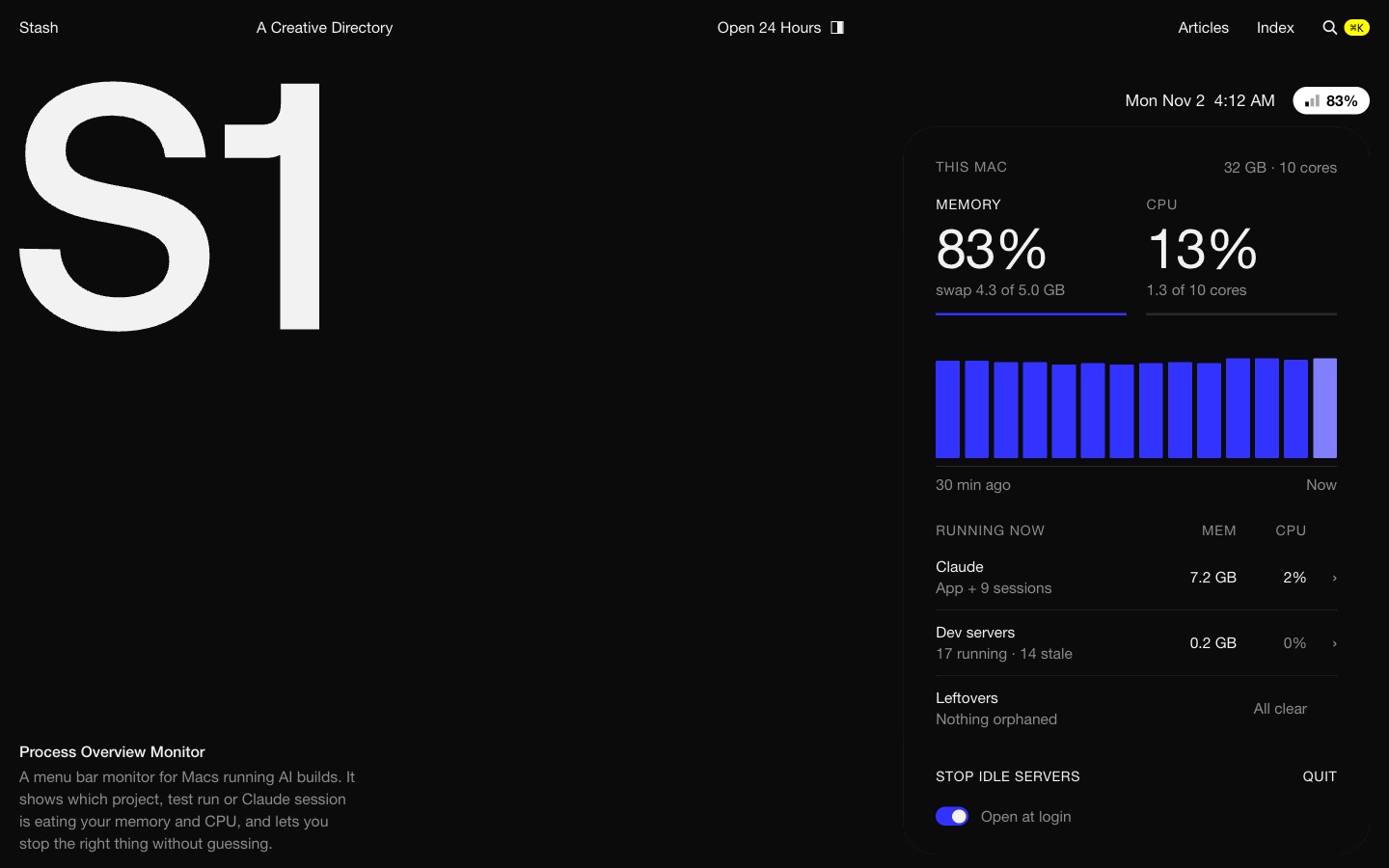
The menu bar pill shows how much memory is in use, with three bars beside it as a live CPU meter. It stays black (white on a dark menu bar) while things are calm and turns red when they aren't: memory over 85%, macOS memory pressure at warning or above, or CPU over 85% for a full minute. When test runs are live, a small yellow number counts them. There are no pop-ups or notifications. The red pill is the whole alert.
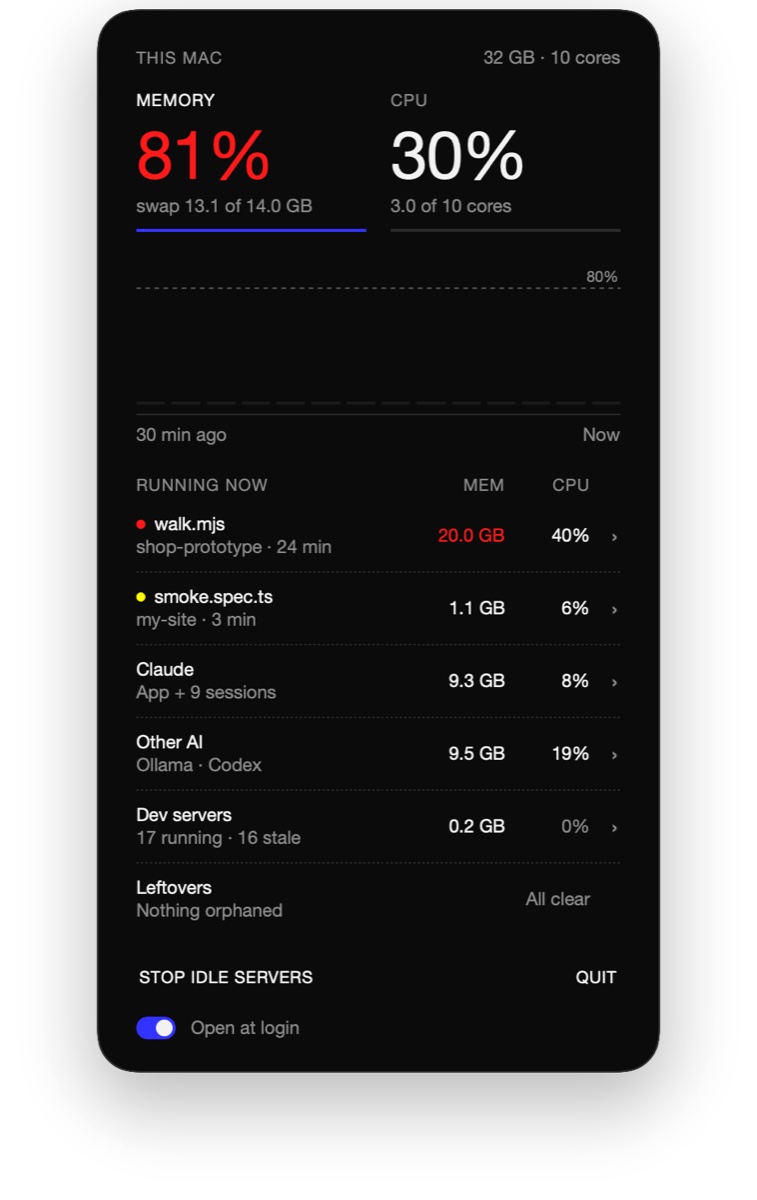
Click it and a card opens with memory and CPU side by side and a 30-minute chart underneath. Below that, everything is grouped:
- Runs: Playwright, Puppeteer and chrome-devtools-mcp browsers, grouped under the script that started them, with the project, age, memory and CPU.
- Claude: every Claude Code session by its title, with model, last activity, memory and CPU, plus the desktop app.
- Other AI: shows up only while another tool is running, such as Codex, Cursor's agent, Gemini CLI, Ollama or LM Studio.
- Dev servers: node, python, bun and deno processes listening on a port, named by project.
- Leftovers: test browsers and servers from Claude sessions that have already ended.
How to use it
Install it. S1 isn't a download. You build it on your own Mac from the code on GitHub: install Apple's command line tools if you don't already use Git or Xcode, then paste three lines into Terminal to download and build it. The S1 page has the commands with copy buttons, and it takes about a minute.
The build script puts S1.app in the Applications folder inside your home folder. Open it once and the meter stays in your menu bar. Turn on Open at login at the bottom of the card if you want it there every morning.
Find the culprit. When the pill goes red, open the card and scan Running now for the big memory or CPU number. Click any row for detail: a run shows the script that started it, a session shows its chart, model, how long it's been open and what it's running underneath, like MCP servers and shells.
Stop it, or ask. For a run a Claude session started, Open chat takes you to that exact conversation in the Claude app, so you can ask the agent to wrap up instead of pulling the rug out. Anything else gets Stop run. Stop idle servers clears dev servers that have been up more than two days and are idle now, and Sweep all clears the leftovers.
Every stop asks first. The dialog lists exactly what will end, Cancel sits on the left, and the red Stop button only wakes up after a moment, so a double-click can't get through. Right before stopping, S1 checks that each process is still the same one, so nothing that reused its ID gets caught.
Heads up
You need macOS 14 or later, and you have to be comfortable pasting a few lines into Terminal. Updating means pulling the latest code and running the build script again.
Open chat only works for Claude Code sessions. Other coding agents get Open folder, which opens the project so you can decide what to do. Local model servers like Ollama can be quit from the card to get their memory back.
S1 names a process by the folder it works in, and assumes your projects live in Documents/Claude in your home folder. If yours live somewhere else, the README on GitHub has the one-line Terminal command to point it at the right folder. It works with Claude Code but isn't made by or affiliated with Anthropic.
Who it's for
Designers and developers who run AI coding agents, browser tests and local servers on a laptop all day, and want to know which one is dragging the Mac down before reaching for Force Quit. If you only ever have one project open, Activity Monitor is enough.
Install it, leave it in the menu bar for a week, and see what's been running that you'd forgotten about.
Written by Steve Salgado
About S1
- Made by
- Stash
- Runs on
- macOS 14 or later; you build it from GitHub with Apple's command line tools
- Watches
- Test runs, Claude Code sessions, other AI tools, dev servers, leftovers
- Privacy
- No account, no network, no analytics
- Price
- Free and open source (MIT)
- In the index
- No. 001 S1 →